
Workout: upload from a file
A completed workout can be uploaded to the calendar as a file - for example, one exported from a watch, a bike computer or another service. Before the upload Staminity shows which workout the file holds, and after the upload you can open it right away.
Uploading works on a computer and on Android - in the app and in the browser. iPhone (coming soon).
- Which files can be uploaded
- Upload from a computer
- Upload from a phone
- The upload window
- From another app on the phone
- If the workout is already there
- If the file did not upload
Which files can be uploaded
- FIT, TCX and GPX - watches, bike computers and most sports services can export them. The case of the file name does not matter:
run.FITwill do. - Up to 25 MB. That is enough even for a workout of several hours.
- Into your own calendar only. A coach cannot upload a file into an athlete's calendar - athletes upload their own workouts.
You do not pick the date: it comes from the file, even if you started the upload from another day in the calendar.
Upload from a computer
- In the calendar, click "+" on any day.
- In the New item window, choose "Upload a file" in the Completed workout group (1):
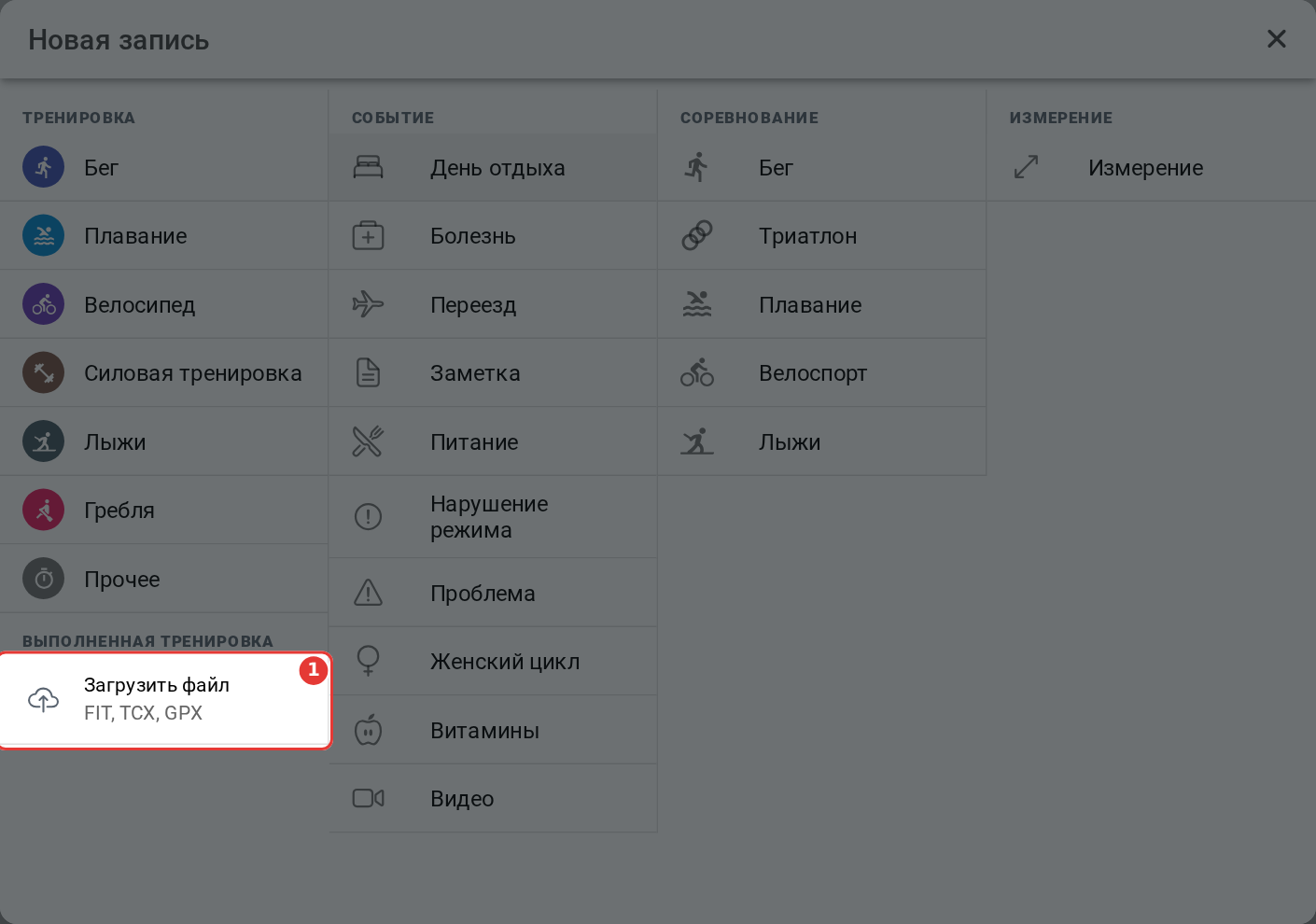
- The Upload a workout window opens. Click "Choose a file" - or drop the file into the window.
- Check that it is the right workout and click "Upload" - see The upload window.
Upload from a phone
On an Android phone - both in the app and in the browser. iPhone (coming soon).
- In the calendar, tap the round "+" button at the bottom right.
- Tap the button with a cloud and an arrow - "Upload a workout from a file" (1):
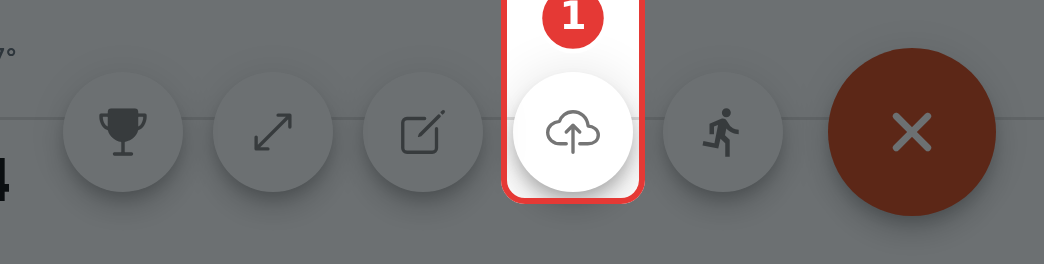
- In the Upload a workout window, tap "Choose a file" and pick the file - for example, in Downloads or Files.
- Check that it is the right workout and tap "Upload".
The upload window
Once a file is picked, the window shows which workout it holds: the sport, the start date and time, the duration and the distance (1), with the file name below. If it is the right workout, tap "Upload" (2); if not, "Choose another".
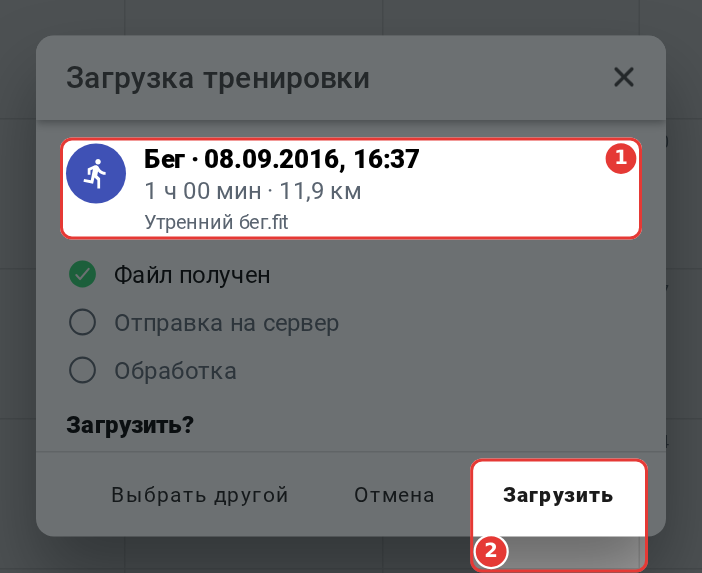
If the details could not be read from the file, the window says so - you can still upload it: the server checks the file itself.
After "Upload" the window ticks off the steps:
- File received - the file is picked and fits the format and size.
- Sending to the server - with a percentage next to it: on a slow connection a big file takes a minute or two.
- Processing - the file has arrived and the server is reading the workout.
When "Workout uploaded" appears, "Open" opens it. The Back button returns the calendar to the day of that workout.
You can close the window without waiting - the upload carries on. When it ends, a message with an "Open" button appears at the bottom of the screen. If you tap "+" again while a file is uploading, the window shows which step the upload is at.
From another app on the phone
In the Staminity app for Android, a workout file can be sent straight from another app - mail, a messenger, Files:
- Android: tap Share or Open with and choose Staminity.
- iPhone (coming soon): open the file, tap Share and choose Staminity.
Staminity opens on your calendar with the upload window: check the workout and tap "Upload". If you are not signed in, the file waits: sign in and the window opens by itself.
Staminity accepts FIT, TCX and GPX files only. A picture of a workout or a link to it cannot be shared into Staminity - export a workout file from that app first.
If the workout is already there
If this workout has already been uploaded, or it already came into the calendar from a watch or another service, a second copy does not appear. The window says "This workout is already here", and "Open" opens the one in the calendar.
If you deleted an uploaded workout and upload the same file again, it is uploaded anew.
If the file did not upload
The message appears in the upload window - or at the bottom of the screen if the window was closed.
| Message | What it means and what to do |
|---|---|
| "You can upload a FIT, TCX or GPX file" | The file has another extension. Tap "Choose another" or export the workout in one of these formats |
| "The file does not look like a FIT, TCX or GPX workout" | The extension is right, but there is no workout inside or the file is damaged. Export it again |
| "The file is larger than 25 MB" | The file is too big. Export the workout without extra data or in another format - FIT is usually the smallest |
| "Could not upload - check your connection" | The connection dropped or the server did not answer. Tap "Retry": if the first upload did get through, Staminity will say the workout is already here |
| "Could not upload the file" | The server could not take the workout from this file. Tap "Retry" or export it in another format; if that does not help, contact support |
| "Wait until ... finishes uploading" | Files upload one at a time: a file from another app arrived while the previous one was uploading. Wait for it to finish and send the file again |
| "Your session has ended - please sign in again" | Sign in and upload the file again |