
Training zones and LT
From your LT and the limits of training zones Staminity calculates the intensity level, the load and the time in zones. What LT is - see the separate article; how the methods calculate zone limits - see “Methods of calculating training zones limits”. Here is where and how the zones are set.
Zones screen
Open “Settings” and choose the “Training zones” row in the fitness group:
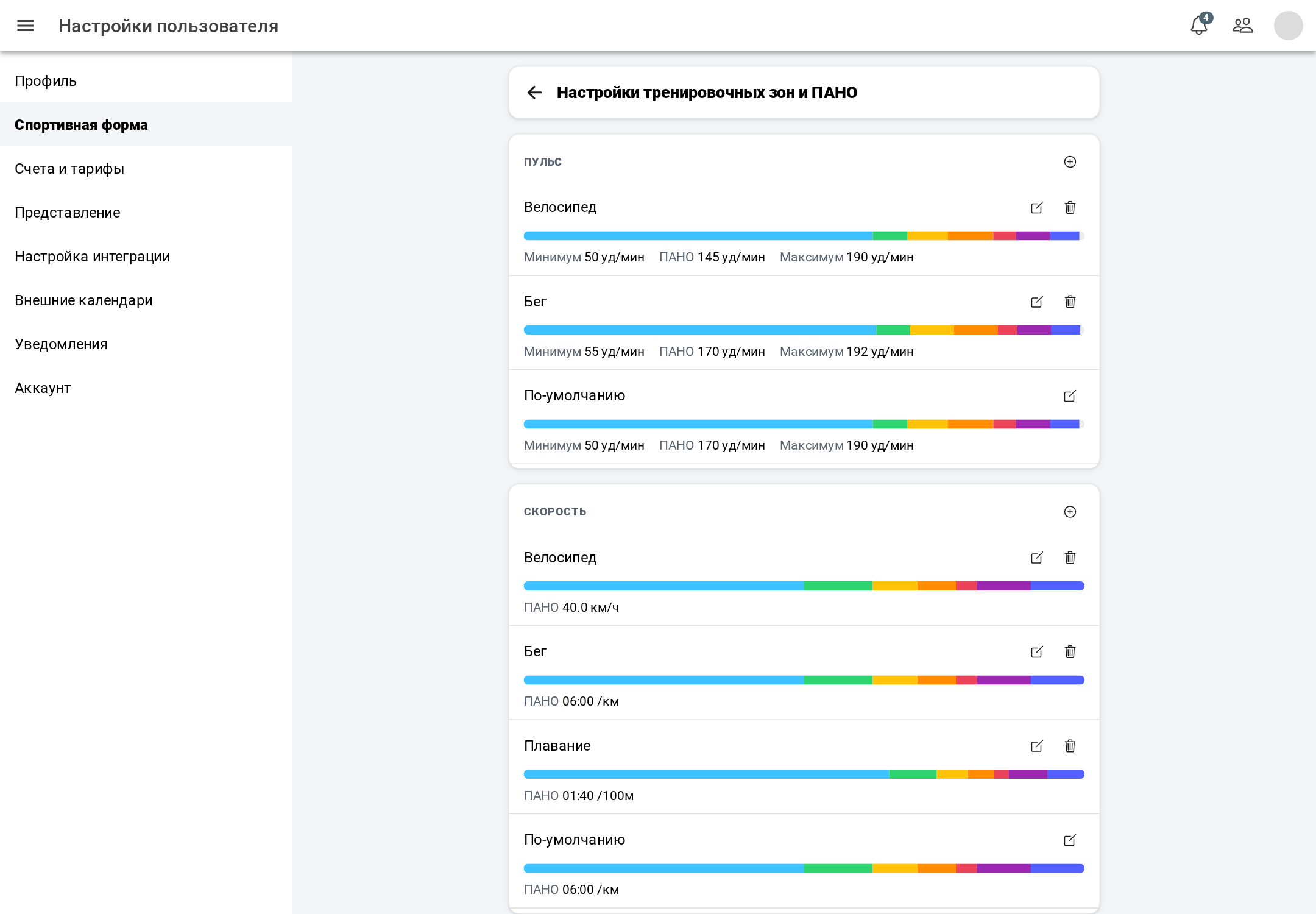
- Zones are grouped by the intensity measure: heart rate, speed (pace), power.
- Each group has rows by sport: a colored bar of zones (hover to see a zone's name and range) and the minimum, aerobic threshold, LT and maximum values.
- The “Default” row is the last one and applies to sports that have no zones of their own.
- The “+” icon in the group header (“Add activity type”) adds a sport: running, swimming, cycling, skiing or other. The new row is created as a copy of the “Default” row.
- The pencil opens the edit window, the trash icon deletes the sport's zones. The “Default” row has no trash icon.
Adding and deleting a sport is saved right away.
Edit zones
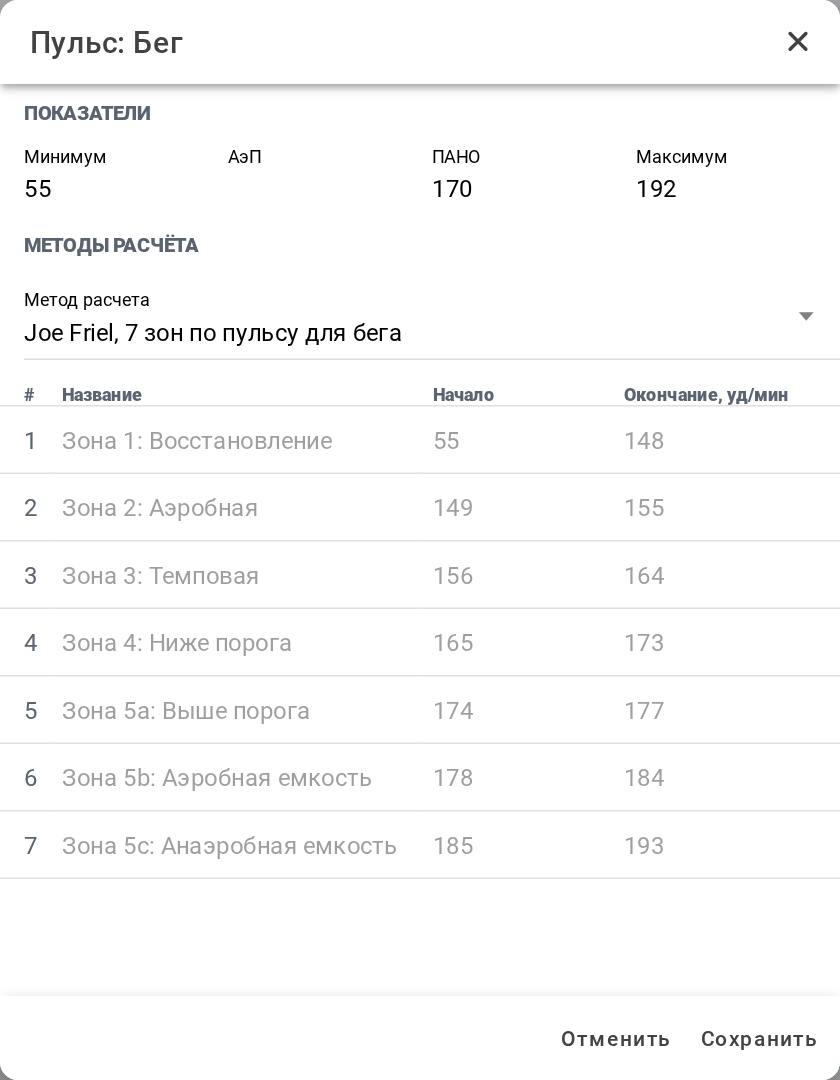
- Measures: minimum, aerobic threshold, LT, maximum. Only LT is required - it must be greater than zero. Speed is entered as pace, for example 5:00.
- Calculation method - the set depends on the measure:
| Measure | Methods |
|---|---|
| Heart rate | Joe Friel - 7 zones for running or for cycling; Karvonen - 5 zones; Peter Janssen - 6 zones |
| Speed | Joe Friel - 7 pace/speed zones |
| Power | Andy Coggan - 7 zones |
| Any | 5, 7 or 9 custom zones |
The Friel and Coggan methods calculate zones from LT, the Karvonen method from the minimum and maximum heart rate, the Janssen method from the maximum. The chosen method recalculates the zones table, and it cannot be edited by hand then. If you changed LT or another measure, choose the method again - the zones are recalculated.
Limits by hand are set only in custom zones (5, 7 or 9): you can change a zone's name, the start of the first zone and the end of each zone; the start of the next zone moves by itself.
The “Save” button is active when LT is greater than zero, all fields are filled in and the upper limits are greater than the lower ones. “Cancel” discards the changes.
Athlete's zones
A coach sets zones for an athlete in the athlete's settings. Choose the athlete in the list next to the settings title (on a phone - in the row under the top bar) and open the training zones. Of the athlete's settings, only the zones are available to the coach. The athlete's zones can also be opened from the dashboard - with the zones and LT settings item of the athlete menu.
This requires access to athletes on the “Coach” tariff - without it the app offers to enable the tariff.
Fitness
The fitness row in the same settings group holds weight, height, training volume (hours per week) and the sports you do. This row exists only in your own settings.