
Calendar items: competition, event, measurement
Besides activities, the calendar has three more kinds of items:
- Competition - a planned or completed competition: stages, plan and fact for each stage;
- Event - a planned or past event that is important for the training process: rest day, sickness, travel, diet, supplements, etc.;
- Measurement - an athlete's measurements: height, weight, sleep hours, resting HR, overall feeling.
All of them are created the same way: move the mouse over the required day in the calendar and click the “+” button at the bottom of the day (or choose “Create” in the day menu). In the “New item” window, choose a sport in the “Competition” column, an event type in the “Event” column, or “Measurement”:
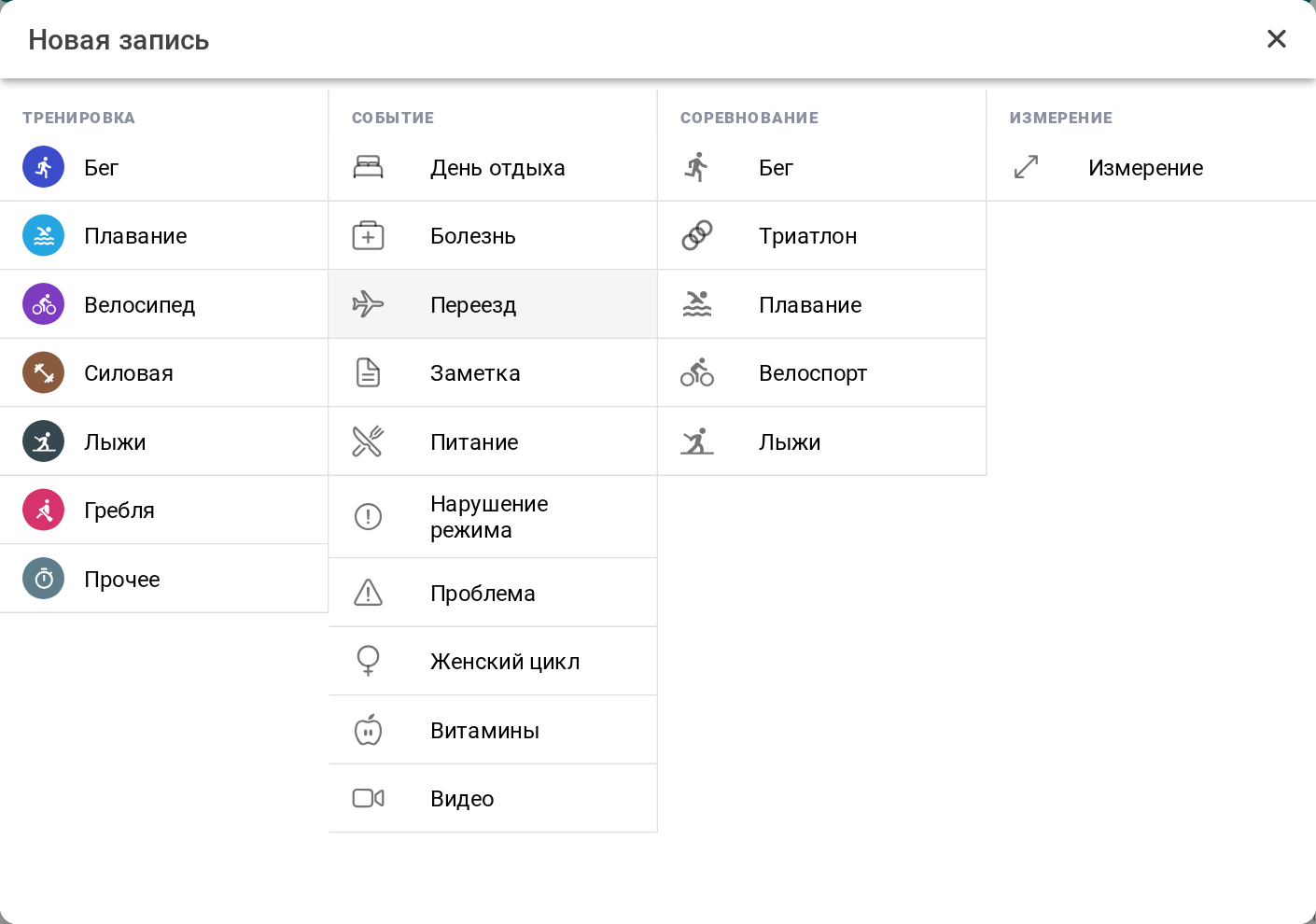
On a phone an item is created with the “+” button in the calendar.
A coach creates competitions, events and measurements for an athlete the same way - in the athlete's calendar or in the athlete's row in the dashboard.
Competition
Competition - a calendar item which contains information about a planned or completed competition.
In this section:
- Create a competition;
- Complete a competition manually or automatically;
- Merge the required completed activity with the competition.
Create a competition
In Staminity you can create a running, triathlon, swimming, cycling and skiing competition. Besides the calendar, a competition can be added from the season plan - with the “Add competition” button in the list of competitions.
Planning competitions for future days is available on the “Premium” tariff (for yourself) and on the “Coach” tariff (for athletes).
When creating a competition you need to set:
- Name - name of the competition which will be displayed in the calendar;
- Sport;
- Competition type for the selected sport;
- Priority: A - the key start of the season, B - one of the intermediate starts, C - low-priority start;
- Date.
Until all these fields are filled in, the “Save” button is not available.
Competition types by sport:
| Sport | Competition types |
|---|---|
| Running | Marathon, Half marathon, 10 km, 5 km, Custom duration, Custom distance |
| Triathlon | Full distance, 1/2 full distance, 1/4 full distance, Olympic distance, Sprint, 1/8 full distance, Indoor |
| Swimming | 10 000, 7 000, 5 000, 4 000, 3 000 and 1000 m, 1 mile (1852 m), 60 min, 30 min, Custom duration, Custom distance |
| Cycling | Custom duration, Custom distance |
| Skiing | 10, 15, 30, 50 and 70 km, Custom duration, Custom distance |
The stages of a competition are built by its type - a stage cannot be added or removed manually, and when the sport or the type changes, the stages are built again. For example, a triathlon has five stages: swimming, the first transition, cycling, the second transition and running.
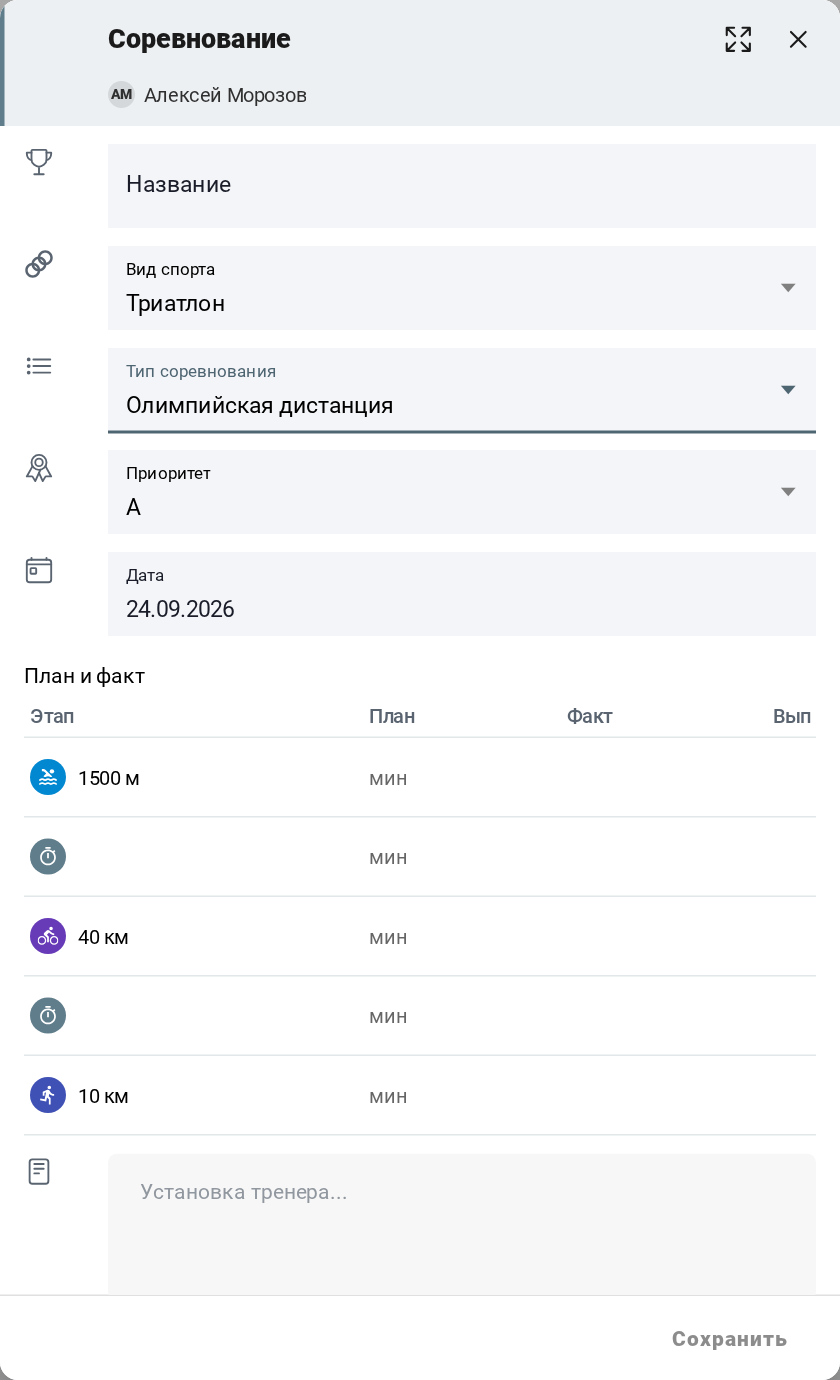
In the table of plan and fact you can set the planned time for each stage - or the planned distance for a race by time (for example, swimming 60 minutes). Transitions are planned by time. The plan is optional.
After the type is chosen, the field for the coach's task appears.
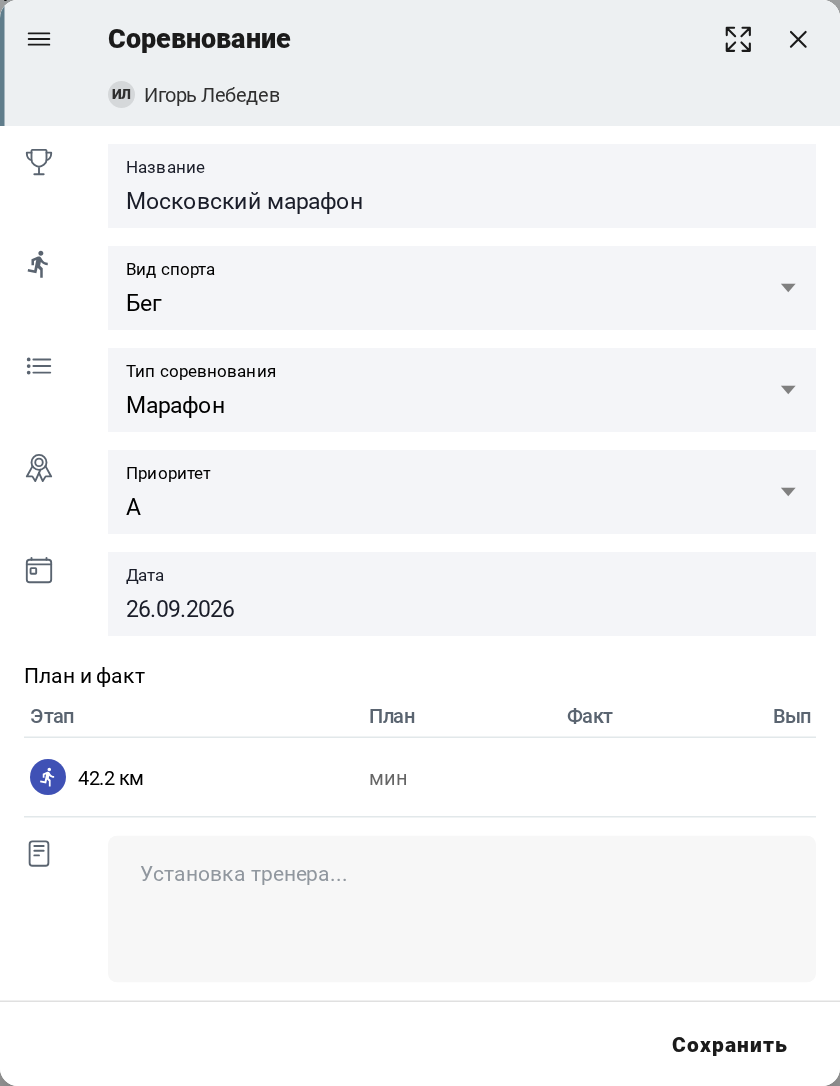
A created competition opens for viewing; to change it, click “Edit”.
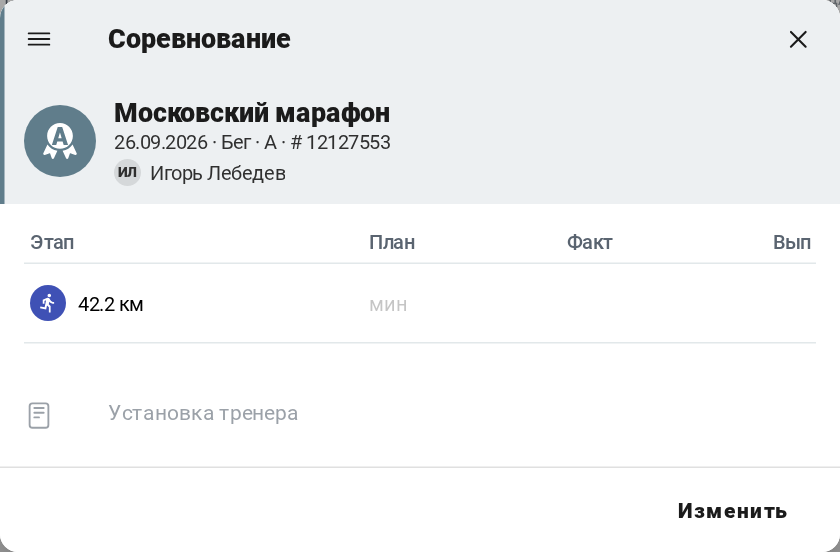
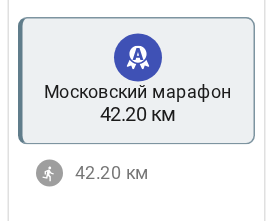
In the calendar, the competition card shows the priority, the name, the total time and distance, a row for each stage and the percent of completion. The card color, as for an activity, shows the state: upcoming, completed or missed.
A competition can be deleted in the menu of the competition window. If the competition is already completed, the app warns that the related completed activities will be deleted with it.
Complete a competition - manually or automatically
As well as for an activity, the actual values of the competition can be entered manually, or they appear after the completed activities are uploaded from the sports watch or from the smartphone.
In contrast to an activity, one competition can contain several activities, as the plan is set for each stage of the competition. An uploaded activity can be matched with a competition stage according to the standard rules.
To enter the actual values manually, open the competition, click “Edit” and enter the value in the “Fact” column of the required stage. If an uploaded activity is already attached to the stage, its plan and fact cannot be changed.
If a completed activity is attached to a stage, you can go to it from the competition - click the stage row - and analyze the stage as an activity.
Complete a competition - merge a completed activity with a competition stage
If a completed activity hasn't been merged with a competition stage automatically, it can be done manually: drag the activity with the mouse onto the required stage on the competition card. The app asks “Merge planned and completed activity?” - answer “Yes”.
Please note:
- a second completed activity cannot be merged with a stage that already has actual data;
- a completed activity can be merged only with a competition on the same day;
- the competition card itself cannot be dragged.
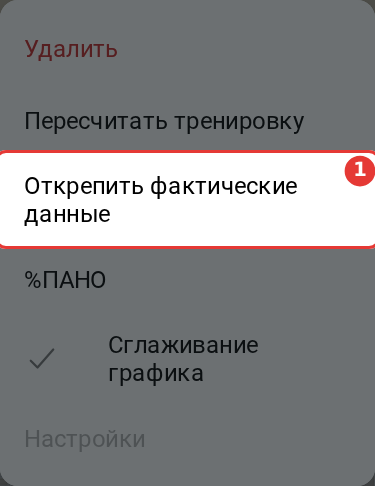
If a completed activity has been merged with a competition stage by mistake, it can be split. To do it, open the competition, click the stage row - the stage activity opens - and choose “Split plan and actual data” in its menu:
Event
Events are used to plan single and repeated events, and to record past events important for the training process.
The event type is chosen in the “Event” column of the “New item” window. On a phone - the “+” button in the calendar, the “Event” item.
Event types in Staminity:
- Rest day - a day when an athlete is resting, no planned activities;
- Sickness - disease, weakness;
- Travel - days when you are traveling (vacation, business trip);
- Note - a note;
- Diet - diet plan for an athlete or diet report for a coach;
- Disruption - you hang out with friends;
- Problem - important information for the coach;
- Menstrual cycle - the coach will know when to reduce the training load;
- Supplements - vitamins and supplements, sports nutrition;
- Video - insert the link to the video into the event description.
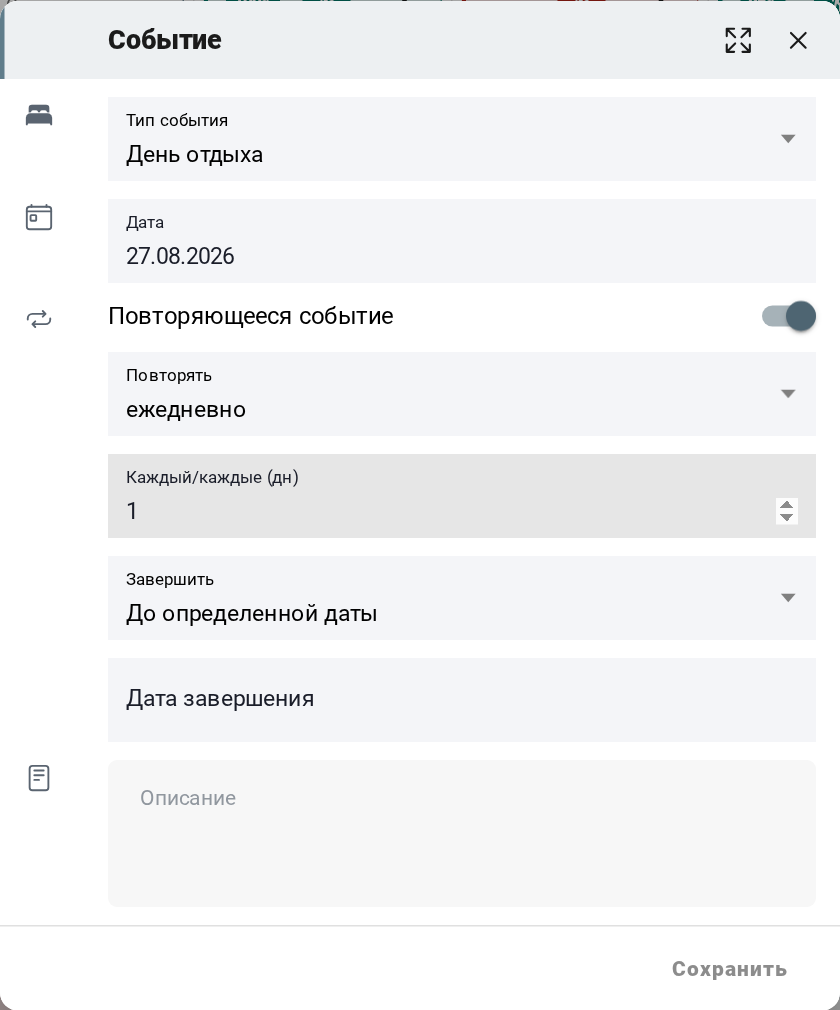
In the event window, set the type, the date and, if needed, the repeat options and the description.
Repeat options
Turn on the repeated event switch and set:
Repeat:
- daily;
- weekly;
- monthly;
- yearly.
Every: how often the event is repeated. For example, for daily repeats:
- every 1 day - the event is repeated every day;
- every 2 days - on alternate days;
- every 3 days - every third day.
Days of week: for weekly repeats you can choose the days of week when the event is repeated.
End:
- on a date - the event repeats until the end date;
- after a number of repeats - the event repeats the set number of times, from 1 to 365.
Until the end date is set (or if it is earlier than the event date), the “Save” button is not available.
An event that came from a training plan cannot be repeated.
Description
Describe the event, give advice or recommendations to an athlete. Format text, highlight important things with color, insert images, links and YouTube videos.
View, edit and delete an event
A created event opens for viewing; to change it, click “Edit”. For a repeated event you can edit the whole series or a single event.
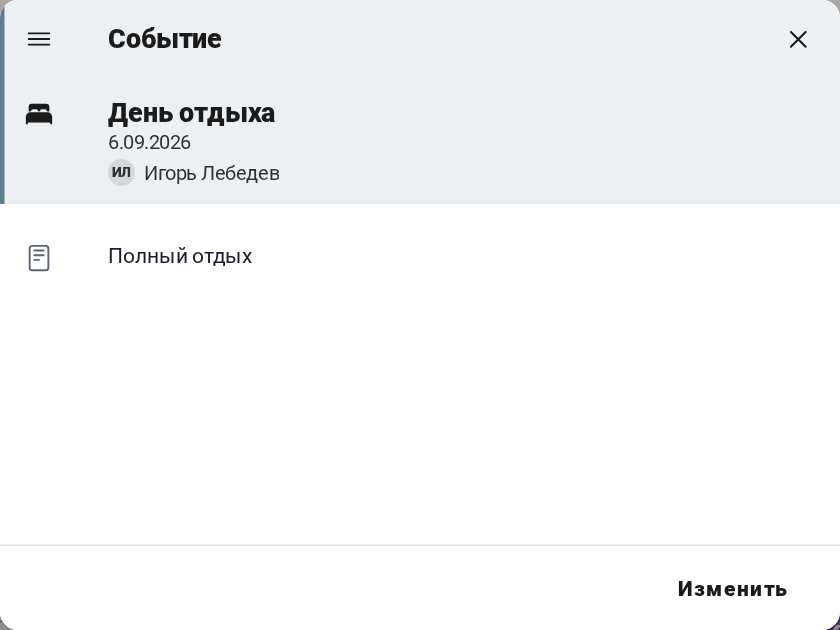
An event can be deleted in the menu of the event window: the event itself, the future events of the series or the whole series.
An event cannot be dragged to another day or copied - create a new one if needed.
Measurement
In the “New item” window, choose “Measurement”; on a phone - the “+” button in the calendar.
Fill in the required fields and click “Save”. All fields are optional.
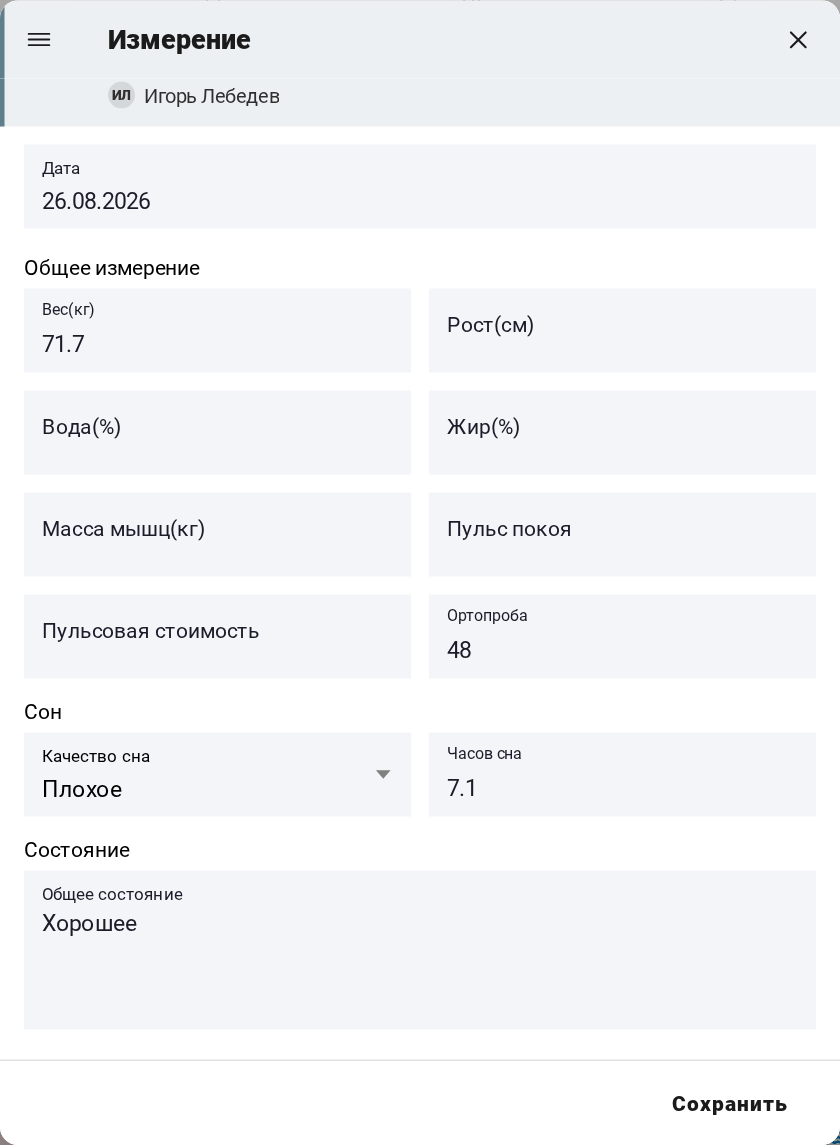
You may set:
- weight and height;
- water % and fat %;
- muscle mass;
- resting HR;
- beats per km;
- orthostatic probe;
- sleep quality and sleep hours;
- overall feeling.
In the calendar, the measurement card shows the filled values:
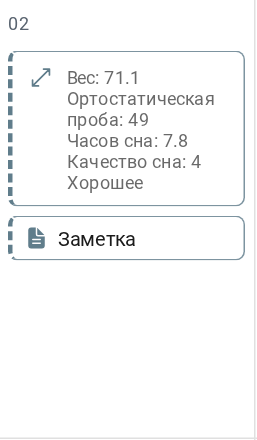
A measurement opens right away for editing; it can be deleted in the menu of the measurement window. A measurement can be dragged with the mouse to another day.