
For coaches: assign a plan to athletes
A training plan can be assigned to your athletes, and the plan entries appear in their training calendar. How to create a plan and fill it - see “For coaches: create a plan”.
Assign a plan
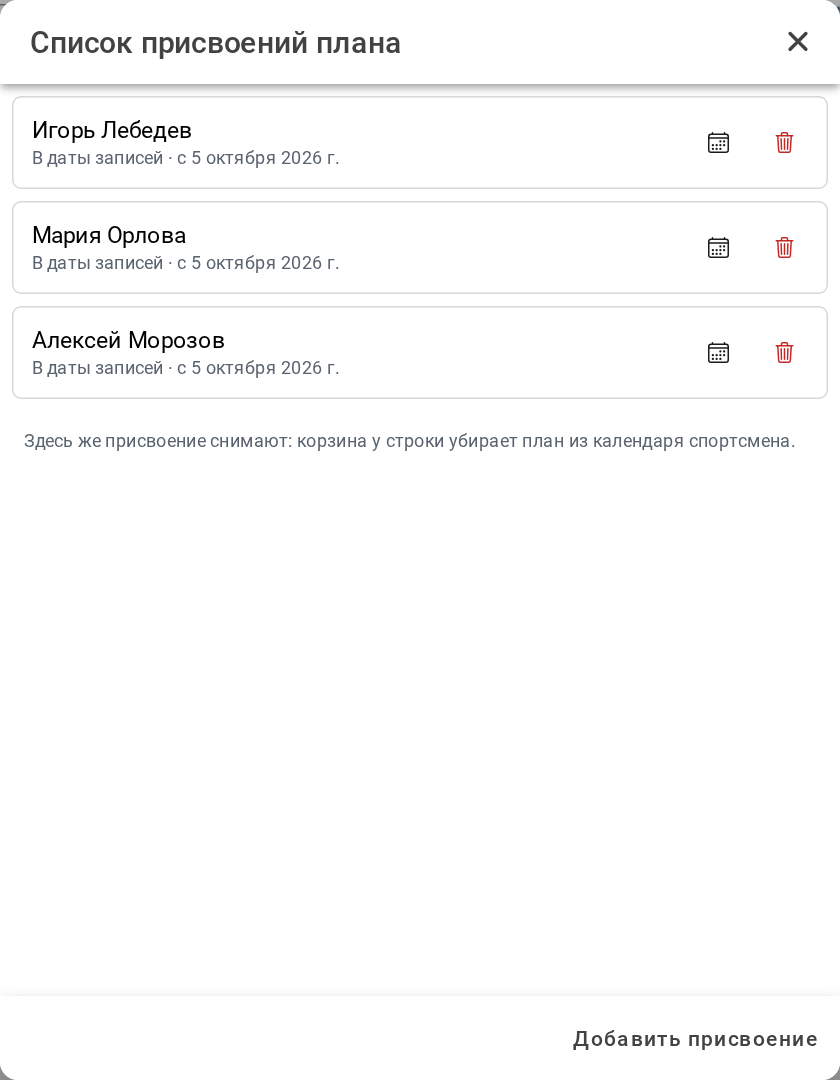
The assignments window opens with the assign button on the plan card or the assign button in the builder. It shows to whom and when the plan is already assigned; the calendar icon opens the athlete's calendar.
To assign the plan, click to add an assignment and set:
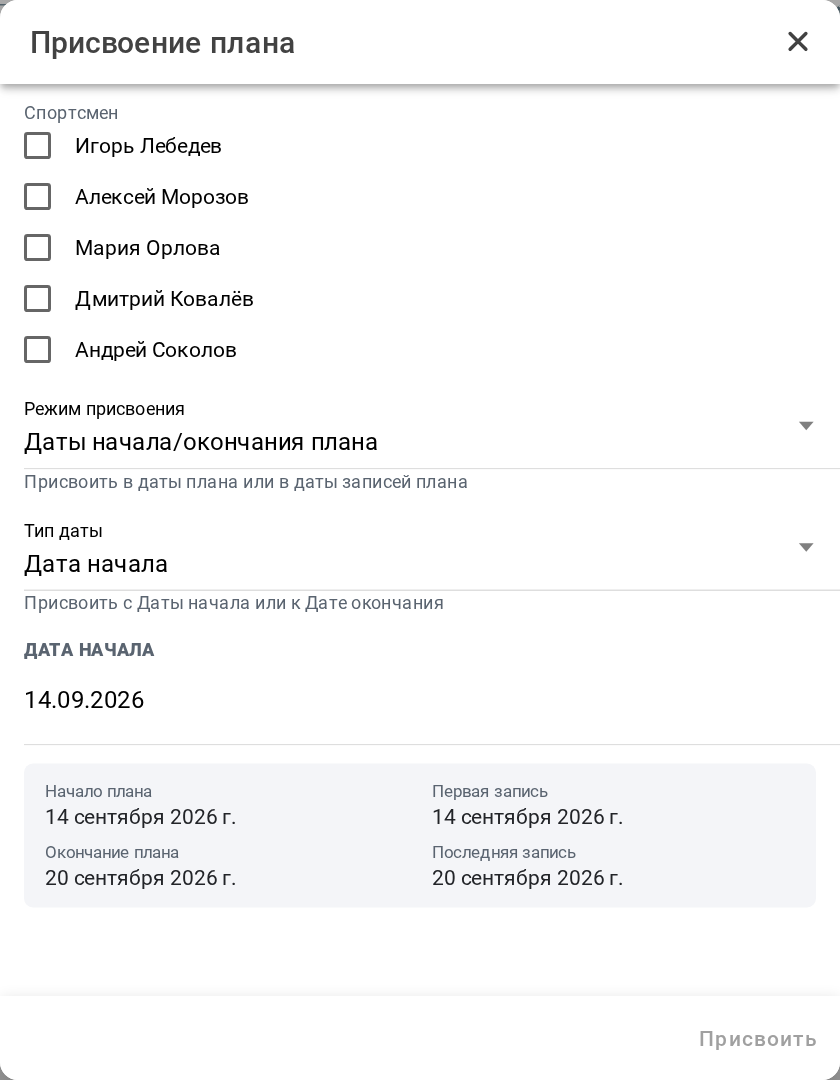
- the athlete or athletes - several can be checked;
- the assignment mode: in the plan start and end dates or in the dates of the first and last plan entry;
- the date type: start date or end date - the plan is applied from the date or up to the date;
- the date.
The block under the date shows the plan start and end and the first and last entry in the athlete's calendar:
| Date | Description |
|---|---|
| Plan start | The first day of the week from which the plan entries are shown in the athlete's calendar |
| First entry | The date of the first plan entry in the athlete's calendar. It differs from the plan start if the first activity of the plan is not on the first day of the week |
| Last entry | The date of the last plan entry in the athlete's calendar |
| Plan end | The last day of the week in the athlete's calendar when the training plan ends |
Click to assign - the app shows to whom and how many activities will appear and asks to confirm.
A plan can also be assigned by dragging it from the plans panel of the calendar to the required day.
Important features of plan assignment:
- Activities in the past are not created. If all or some plan activities fall in the past, they are not created in the athlete's calendar - the app warns about it.
- Passing changes of a dynamic plan is temporarily unavailable.
- Assigning a plan for future dates requires the “Coach” tariff.
In the athlete's calendar, activities from the plan have the “From a training plan” icon on the card.
Remove a plan assignment
In the assignments window click the trash button of the required row. Future activities of this plan are removed from the athlete's calendar; past ones stay unless you check the option to remove them too.