
For coaches: create a plan
Creating training plans is available to users with the “I am a coach” flag in the settings.
A training plan is created in two steps: first you set the plan parameters, then you fill the plan with activities and competitions in the plan builder. Which kinds of plans there are - see “What a training plan is and which kinds there are”.
Create a training plan
Training plans are in the “Methodology” section, on the training plans tab. Click the button to create a plan; if there are no plans yet - the create plan button.
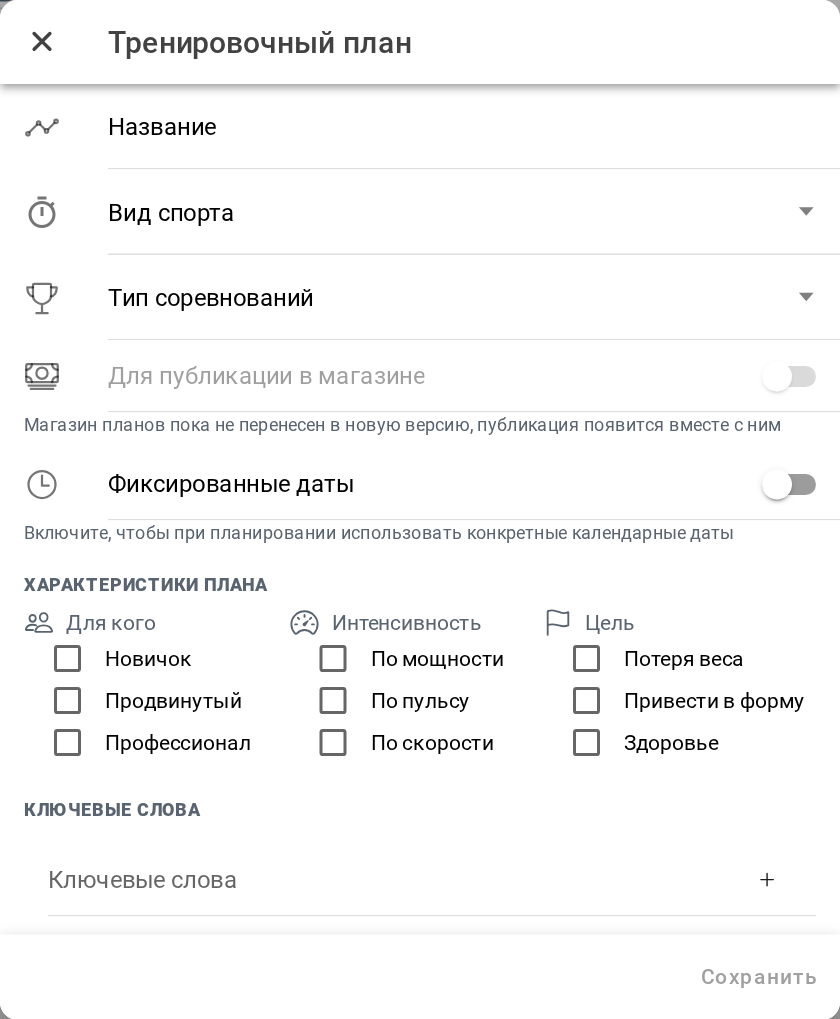
Set:
- the plan name;
- the sport of the plan;
- the competition type the plan prepares for;
- fixed dates. Turn it on to create a plan with fixed dates and off for a plan with non-fixed dates - then planning goes by “Week 1”, “Week 2” and so on. This option is set only when the plan is created;
- the plan start date (for a plan with fixed dates) - the Monday the plan starts on. It cannot be changed after the plan is assigned;
- dynamic plan (for a plan with fixed dates) - see dynamic plan;
- plan characteristics: for whom, intensity, goal. They help to filter plans;
- keywords.
Click “Save”.
The option to publish in the store is not available yet: the plans store has not been moved to the new version of the app.
Fill the plan in the builder
To fill the plan, click the activities button on the plan card - the plan builder opens:
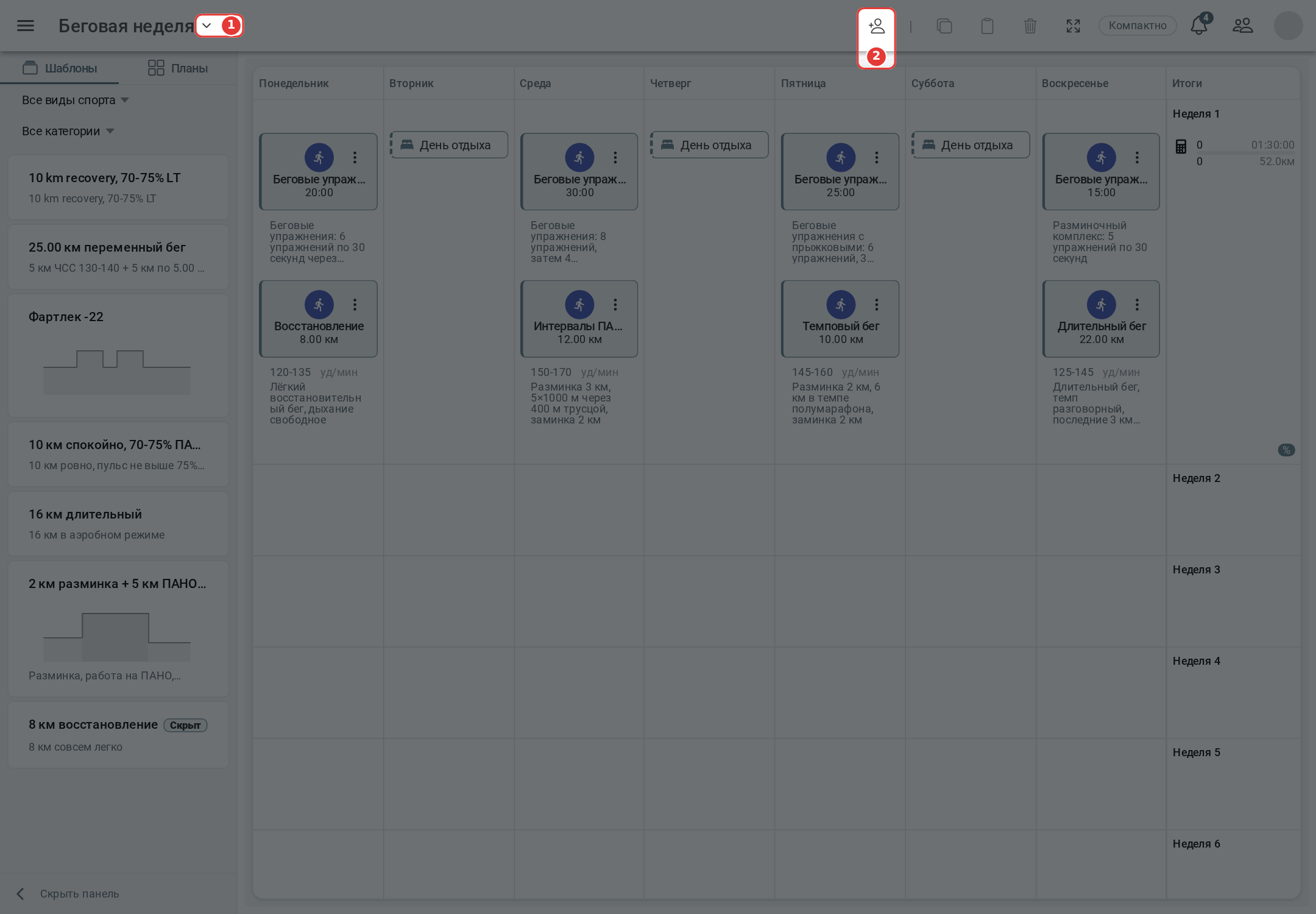
- 1 - plans list: a click on the plan name opens its parameters, and the arrow next to it opens the list of your plans - go to another plan or back to the list of plans;
- 2 - plan assignments, see “For coaches: assign a plan to athletes”.
The top bar also has copy, paste and delete of the checked entries and the compact / detailed view. On the left there is the templates panel.
Creating activities and competitions in a plan repeats these actions in the calendar: the “+” button in a day of the plan week. Activities in a plan can be created:
- manually;
- from templates - choosing a template when entering an activity or dragging a template from the left panel;
- by copying another activity of the plan.
Plan entries can be dragged between days. An entry can be marked as a sample in its menu.
Please note! In training plan activities, the intensity is always set in % of LT. This allows using one plan for several athletes with different fitness and LT.
When the plan is ready, assign it to athletes - the plan entries appear in their calendars.