
Workouts from Health Connect on Android
This integration is available in Staminity 4.2.0 or later on Android phones that support Health Connect. Health Connect is not available on iPhone. Update Staminity on Android before connecting.
Staminity for Android can import completed workouts that Zepp, Samsung Health, Mi Fitness and other apps write to Health Connect. Once connected, new workouts appear in your calendar. Your coach sees them just like your other completed workouts.
The available data depends on your watch app. Heart rate, speed, power, cadence, laps and routes appear in Staminity if the source wrote them to Health Connect and you allowed Staminity to read them. A map in your watch app does not necessarily mean that the app shared the route with Health Connect.
Staminity does not write data back to Health Connect or import sleep, weight or daily step totals.
Connect
- Enable sharing workouts with Health Connect in your watch app.
- Open Staminity on Android and find Health Connect in the sync section of Settings.
- Choose how much history to import: 30 days, 3 months or A year. Only 30 days are available if your phone does not support access to older data.
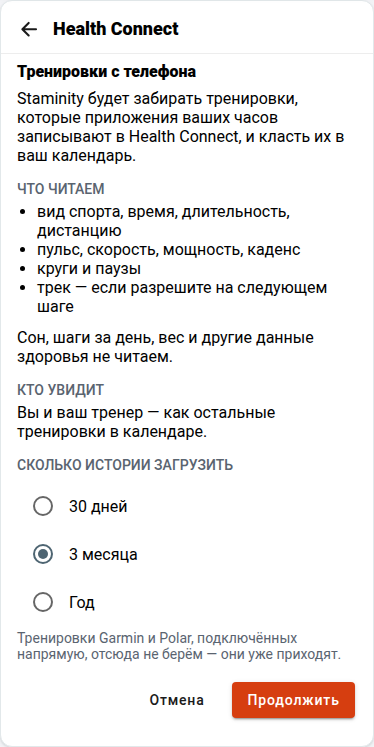
The screenshots show the Russian interface with example data.
- Allow Staminity to read workouts and the measurements you want to import. For automatic imports while the app is closed, allow background reading if your phone offers it.
- Set up route access or select Without routes. Then allow notifications about workouts waiting for you to open Staminity.
- Wait for the history import. You can leave this screen; importing continues if background reading is allowed.
If Staminity asks you to install or update Health Connect, do so and return to the app.
After connecting, the screen shows source apps, the latest workout and the Health Connect settings button:
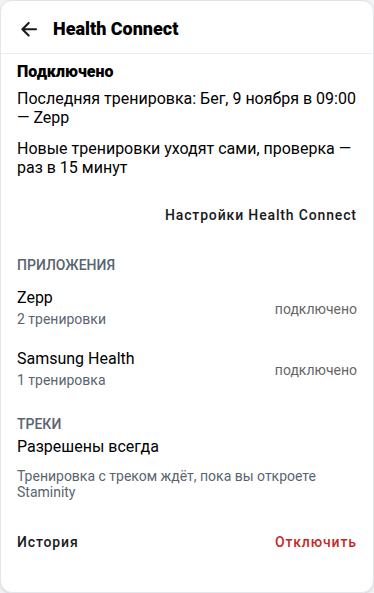
When new workouts arrive
Staminity imports completed workouts. It waits for the source to finish adding data before uploading, so a workout may not appear immediately after you stop recording on your watch.
A background check is scheduled every 15 minutes. Android may delay it; this is not a promise that a workout will arrive in exactly 15 minutes. If background reading is not allowed, open Staminity to import new workouts.
Workouts shorter than one minute are skipped.
Routes and notifications
Maps need separate route access. On Staminity’s Health Connect screen, tap Health Connect settings below the automatic import description. This opens the general Health Connect settings. Select Staminity → Additional access → Exercise route access → Always allow. The names of system settings may vary between phones.
During the first connection, a separate Staminity screen explains this path:
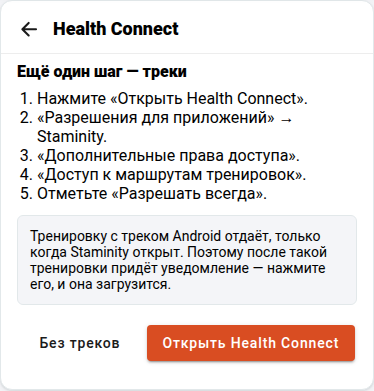
When route access is allowed, outdoor workouts wait for Staminity to open: routes written by other apps cannot be read in the background. If notifications are allowed, your phone tells you when to open Staminity. Tap the notification or open Staminity yourself.
If notifications are off, open Staminity after your workout. If route access is not allowed, workouts import without a map. Granting route access later does not automatically add a map to a workout that has already been imported.
If a map is missing, check whether your watch app wrote the route to Health Connect. Giving Staminity permission is not enough if the route itself is absent there.
Import history
Tap History on the Health Connect screen. Newer workouts appear first; Show more reveals older entries.
Each imported workout shows its sport, date, source and duration or distance. A workout imported with a route is marked with route. During importing, you may see queued, sending or waiting for the app to open. Skipped workouts show the reason.
After the calendar check, In the calendar means the completed workout was found in Staminity. Not in the calendar means that the completed workout is currently absent.
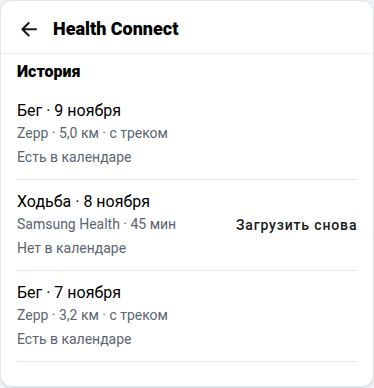
The arrow at the top returns from history to the connection screen.
Restore a deleted workout
If you delete an imported workout from your Staminity calendar, it will not return automatically during the next sync.
To restore it, open Health Connect → History and tap Upload again beside the workout. The button appears after Staminity confirms that the workout is absent from the calendar. The original workout must still be in Health Connect, and the required permissions must remain enabled.
Staminity checks the calendar again after uploading. Once the workout is found, the upload button disappears.
Deleting a workout in Health Connect does not delete the copy already imported into Staminity.
Intervals.icu and Garmin
Health Connect imports are unavailable while Intervals.icu is connected: your workouts already arrive through that connection. To switch to Health Connect, disconnect Intervals.icu in the sync settings first.
If Garmin is connected directly to Staminity, workouts written by Garmin Connect to Health Connect are skipped. Workouts from other apps, such as Zepp or Samsung Health, continue to import.
If workouts do not arrive
| What you see | What to check |
|---|---|
| The workout is absent from Health Connect | Enable workout sharing in your watch app and wait for it to sync with Health Connect. |
| No access to Health Connect | Tap Allow and restore workout access. |
| Loading while the app is open | Open Staminity or allow background reading in Health Connect settings, if your phone supports it. |
| Waiting for the app to open | Open Staminity: the workout is waiting for its route to be read. |
| Sign in to Staminity | Sign in to your account. |
| No connection | Restore your connection. Unsent workouts stay queued and will be retried later. |
| Missing heart rate, a map or other measurements | Check permissions and whether those data are present in Health Connect. Your watch app may have shared only workout totals. |
Disconnect
Open Health Connect in the sync section of Settings, tap Disconnect and confirm. New workouts stop importing; workouts already imported stay in your calendar.
The sync section opens with Health Connect switched off. Tap the Health Connect row to connect it again.
You can also revoke read permissions in the system Health Connect settings.