
Workout: export to Zwift
A structured bike workout can be downloaded as a file for Zwift and ridden there as your own workout (Custom Workout) - with the segments, their duration and the power from the plan. The feature is in beta.
- Which workouts can be exported
- How to export
- How power carries over
- What the export window says
- If the watts in Zwift do not match the plan
- Recalculate plan from threshold
Which workouts can be exported
- Only on the Staminity website. The iPhone and Android apps have no such item. The file itself is needed on the computer where Zwift is installed.
- Only a structured workout of the "Cycling" sport - a plan by segments. How to create one - see "Workout: plan".
- Segment duration by time. Zwift does not understand segments set by distance: the export window says so and no file is downloaded. Give such segments a duration in time.
How to export
- Open the workout and press the ☰ menu at the top left.
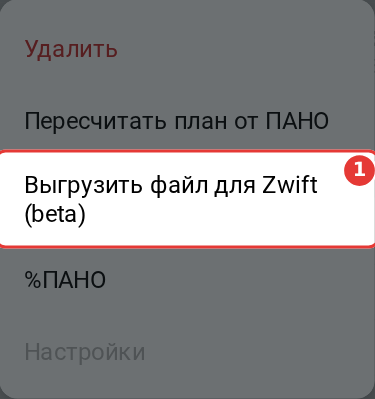
- Choose "Export file for Zwift (beta)" (1):
- In the "File for Zwift" window, read the notes (they are explained below) and press "Download":
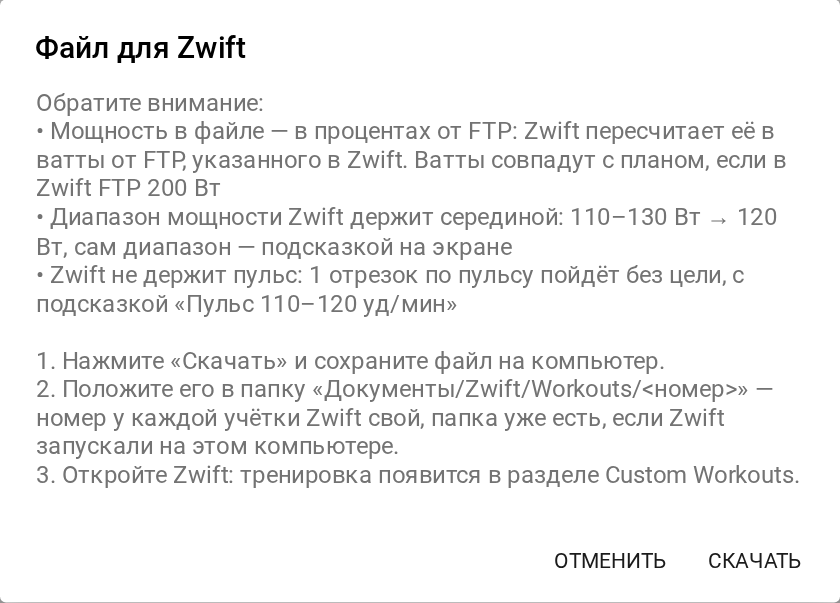
- Put the file in the
Documents/Zwift/Workouts/<number>folder. Each Zwift account has its own number; the folder is already there if Zwift has run on this computer. - Open Zwift: the workout appears under Custom Workouts.
The file is named after the workout and its date. The coach's prescription becomes the workout description in Zwift.
How power carries over
- Power in the file is a percentage of FTP. That is the only way Zwift sets power; watts cannot be written into the file. The file gets the percentages of the power threshold (LT) - the same as in the workout plan (in Staminity the power LT is your FTP). Zwift turns them into watts from the FTP set in Zwift.
- The watts in Zwift match the plan when your FTP in Zwift equals the power LT the plan was made from. The export window tells you which FTP Zwift should have.
- Zwift holds a power range as one value - its middle. For example, 180-190 W becomes 185 W, and Zwift shows the range itself as an on-screen hint. If you need exact power, give the segment a single number.
- Zwift cannot hold heart rate or speed. Heart-rate and speed segments go as a free ride, with no power target, and the target is shown as an on-screen hint, for example "Heart rate 110-120 bpm".
What the export window says
Before the steps, the window lists what to note in this particular workout. A line appears only when it applies:
| Line in the window | What it means and what to do |
|---|---|
| "Power in the file is a percentage of FTP... The watts match the plan if your FTP in Zwift is 200 W" | Set this FTP in Zwift and the watts will match the plan. If the plan is set in percent only, there is no number: Zwift uses your FTP from Zwift |
| "The workout was planned at a threshold of 200 W; your zones now say 252 W" | The LT changed after the workout was made. If the plan is set in watts, recalculate it. If it is set in percent, nothing needs doing |
| "The segments were calculated from different thresholds" | The segments were made at different times, with different LT - recalculate the plan |
| "N segments are set in watts with no percentage of threshold" | There was no power LT when the workout was made, so Zwift will not hold power on these segments. Set the LT and recalculate the plan |
| "Zwift does not hold heart rate" and "Zwift does not hold speed" | Such segments go as a free ride with an on-screen hint |
| "Zwift holds a power range at its middle" | See above |
| "N segments without intensity go as a free ride" | The segment has no intensity - Zwift rides it without a target |
If the watts in Zwift do not match the plan
Compare your FTP in Zwift with the power LT in Staminity: "Settings" → "Training zones" → the "Power" group. The two should be the same.
- If the value in Staminity is right, set the same FTP in Zwift.
- If the LT in Staminity is out of date, update it - see "Training zones and LT". Then, in the workouts already made that you are going to export, press ☰ → "Recalculate plan from threshold" and export the file again.
Recalculate plan from threshold
When the LT changes, the percentages in workouts already made stay as they were - they were calculated from the old LT. The "Recalculate plan from threshold" item in the workout menu (in the picture above it sits right over the export item) recalculates the percentages from the current LT:
- watts, heart rate and speed in the segments do not change - only the percentages do;
- segments set in percent only stay as they are;
- the item is there for a structured workout dated today or later; on the website it is also in the menu of the workout's card in the calendar.
A coach can update an athlete's LT and recalculate their workouts.