
Notifications
Staminity tells you about what matters for training: an athlete completed an activity, the coach created or changed a task, a comment or a request arrived, a synchronization finished, a bill was issued.
Notifications come:
- in the app - in the notifications list and as a pop-up;
- by email;
- to the smartphone and the browser - as push notifications.
In this article:
Notifications list
The list opens with the bell icon on the right of the app header. The number on the icon is how many notifications are unread. The list slides in from the right:
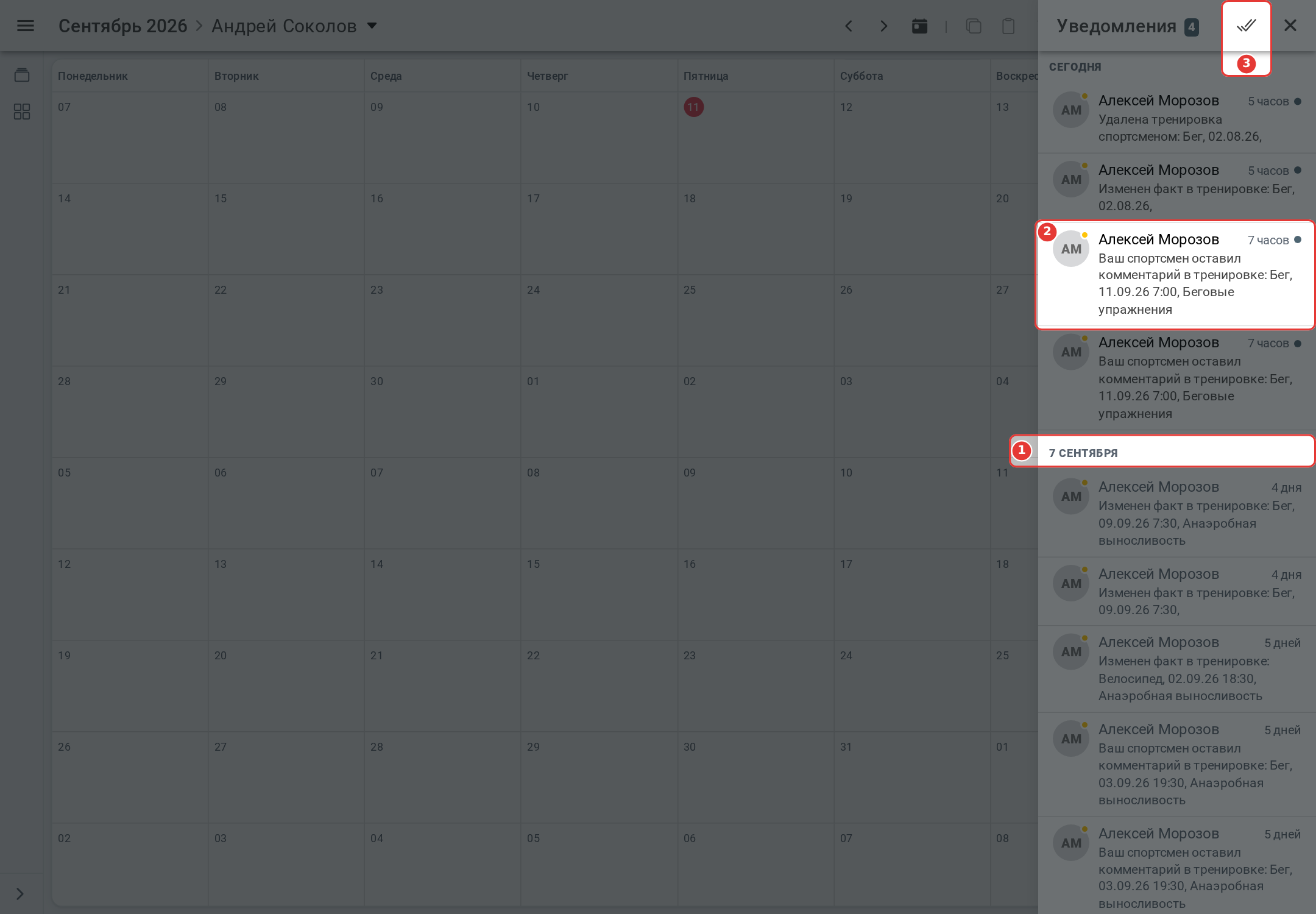
- 1 - day: notifications are grouped by day - “Today”, “Yesterday”, then the date. The newest are on top;
- 2 - notification: the sender's avatar and name (an athlete, a coach, a club, a synchronization service or Staminity itself), the text and how long ago it came. A dot after the time means the notification is unread;
- 3 - “Mark all as read” - the button is shown while there are unread notifications.
The list holds the last 100 notifications; it is refreshed every time it opens.
What a tap opens. A notification about an activity, competition, event, measurement or comment opens this item in the calendar, and a comment notification opens it right on the “Chat” tab. A tap on the avatar opens the sender's profile. One tap opens the notification and marks it as read.
Notifications about deleted items, bills and tariffs lead nowhere and do not open. To mark such a notification as read, use “Mark all as read” or swipe it to the left.
Swipe to the left - the notification shows the “Read” (only for an unread one) and “Delete” buttons.
A coach opens a notification about an athlete's activity if the coach has access to athletes on the “Coach” tariff. Without access the app offers to enable the tariff.
Pop-up notifications
While the app is open, a new notification pops up in the top right corner and stays for 7 seconds; no more than three are shown at once. A tap on it opens the same as in the list and marks the notification as read. The cross closes the pop-up, and the notification stays unread.
A comment on the activity you have open right now does not pop up - you already see it in the chat.
Push notifications
Push notifications come even when the app or the browser tab is closed.
The app asks once whether to turn them on: “Turn on notifications?” - the “Not now” and “Turn on” buttons. In a browser the question appears no earlier than on the second visit. After “Turn on” the browser or the phone asks for permission itself. After “Not now” the app does not ask again - push notifications can be turned on in the settings, the first row.
If you refuse in the system question of the browser or the phone, notifications can be turned on only in the settings of the browser or the device.
A tap on a push notification opens the app where the notification from the list leads: an item in the calendar, a person's or club's profile, the synchronization or billing settings.
Notification settings
What to send and where is set in “Settings” - “Notifications”:
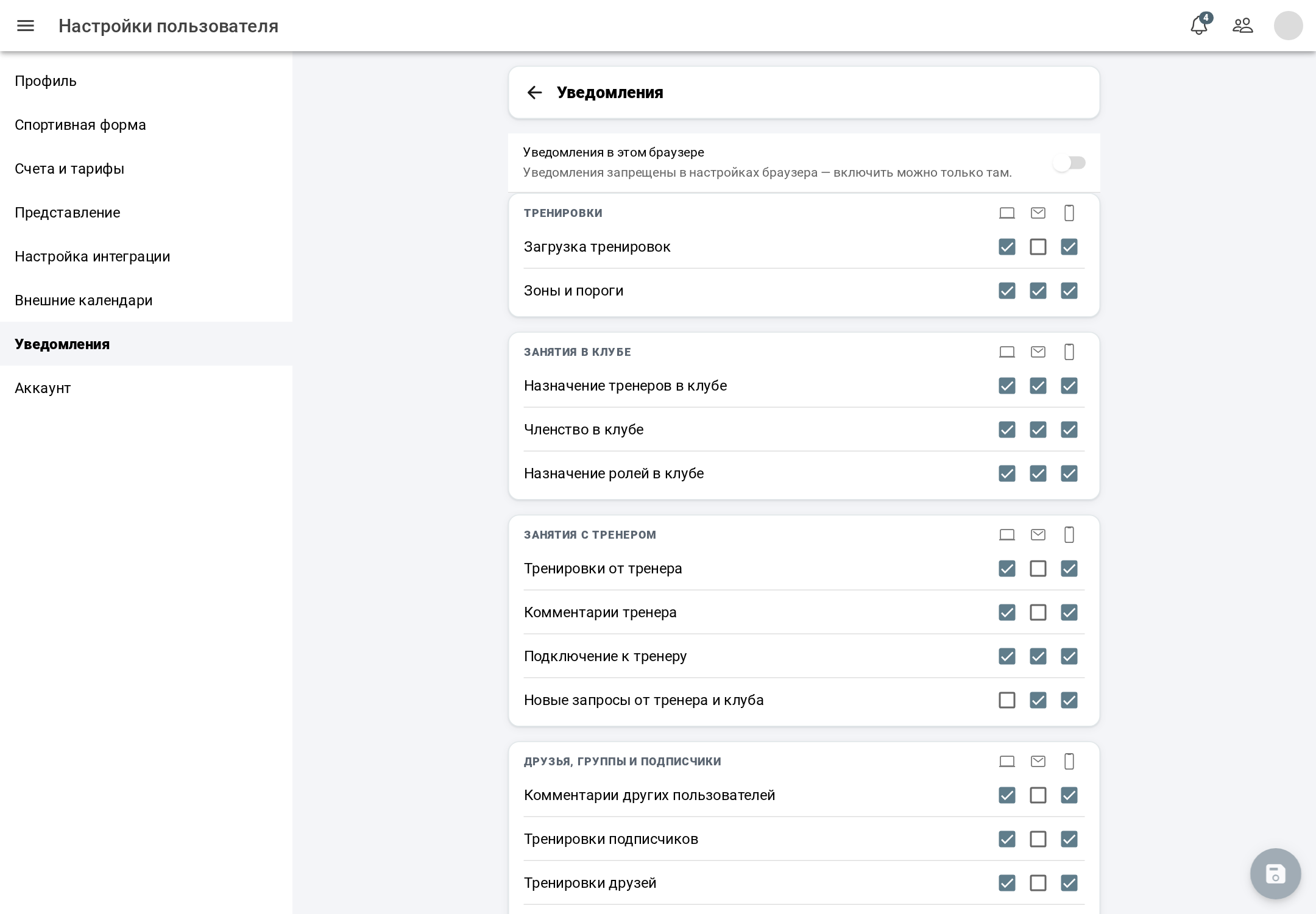
Notifications are grouped: “Activities”, “Work with club”, “Train with coach”, “Friends, groups and followers”, “Tariffs and payments”, “Staminity notifications”, “Training plans: Athlete”, “Work with athletes”, “Training plans: Coach”, “Club management”. For each notification check where to send it: three columns - in the app, by email, to the phone. The column names are shown when you hover over the icons in the table header.
The “In the app” column is the main one:
- if you turn off a notification in the app, it is also turned off by email and on the phone;
- if you turn on email or phone, the notification is turned on in the app as well.
Changes are saved with the round button with a floppy disk in the bottom right corner; while nothing is changed, it is inactive.
The first row is notifications in this browser (in the mobile app - on this device). The setting is separate for each browser. If the browser or the device blocks notifications, they can be turned on only in the browser or device settings.
The mobile app has no “Tariffs and payments” group and no rows about paid training plan purchases and tariffs paid by a club - these settings are in the web version. The notifications themselves still come to the mobile app.
You can also stop some kinds of email notifications with the “Unsubscribe” button in a Staminity email.