
Overview
Open Overview from the Staminity menu. Use it to check today's workouts and the week ahead, see how long you have until your next race, and review your training volume. Coaches can select an athlete at the top of the screen. Select yourself from the same list to return to your own data.
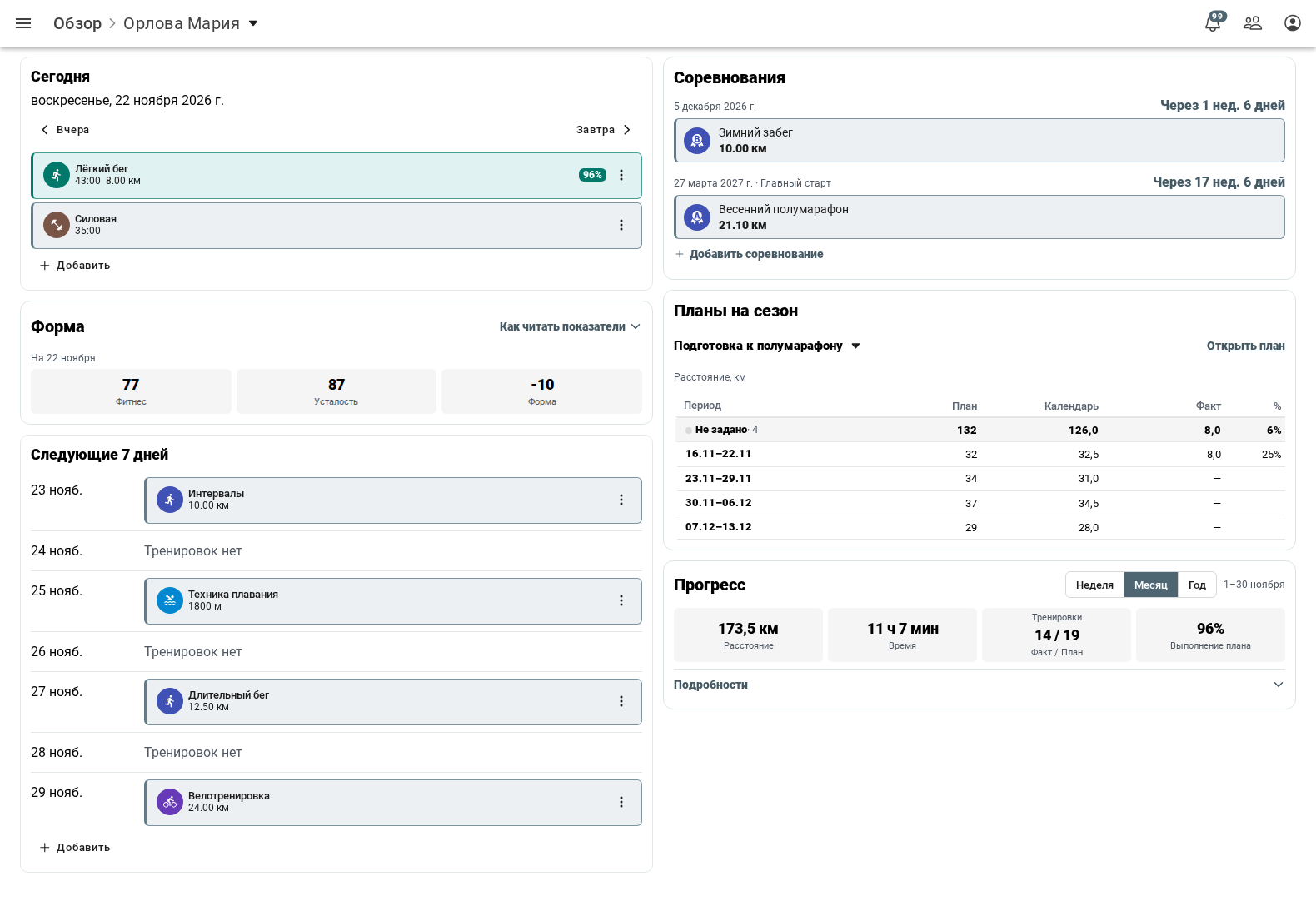
Overview on a wide screen. All screenshots use sample data.
Set Overview as your start screen
Open Settings → Display preferences → Start screen and choose Overview or Calendar. Staminity saves your choice to your account and uses it when you sign in normally. Display preferences.
Today and the next 7 days
Today shows your planned and completed workouts. Use the buttons above the cards to look at another day. When a forecast is available, select the weather icon for details.
On a wide screen, Next 7 days lists workouts by day. On a narrow screen, select Open calendar to open the calendar at tomorrow's date. Training calendar.
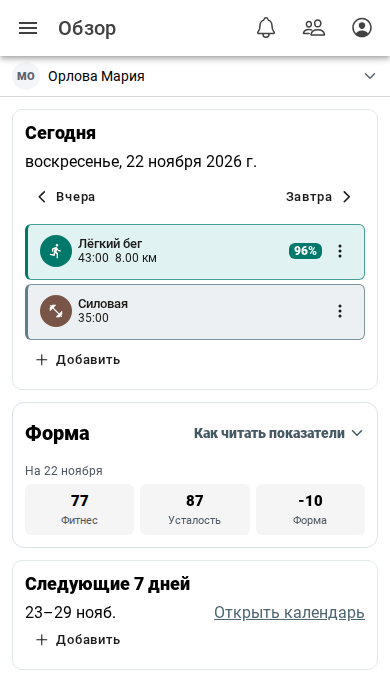
On a phone, Form appears below Today.
If you can edit the calendar, both sections have an Add button for workouts, events, measurements, and competitions. Today uses the day on screen, and Next 7 days lets you choose the date. In your own calendar, you can also open file upload from this dialog when the feature is available. Upload a workout.
Current form
Under Today, you can see three figures for the latest available date up to and including today. The period you select in Progress has no effect on these figures. If there is too little data to calculate them, the section shows a message.
For each day, Staminity adds up the available actual training load (TL) scores from completed workouts. Each workout's score comes from its intensity and duration. How training load is calculated.
Fitness and fatigue update daily. Staminity takes the previous day's value and moves it toward the day's training load. Each new value reflects both past training and today's load.
- Fitness (CTL) reflects the fitness you have built up over time. Its 42-day smoothing period makes it change slowly.
- Fatigue (ATL) reflects recent training load. Its 7-day smoothing period makes it respond faster to workouts and rest.
Older workouts have less influence with each passing day. On a rest day with zero training load, fatigue falls by a larger percentage than fitness.
Form (TSB) is fitness minus fatigue for the same day. In the Overview screenshot, fitness is 77, fatigue is 87, and form is −10. A negative value means fatigue is higher than fitness, zero means the two are equal, and a positive value means fitness is higher than fatigue. Overview rounds each of the three values separately. Subtracting the displayed fatigue from the displayed fitness may therefore give a different result from the form shown.
Look at how form changes alongside workouts and recovery. There is no universal threshold for deciding when to train or rest.
Exponential smoothing formula
Subtract the previous day's value from the day's training load, multiply the difference by 1 − exp(−1/N), then add it to the previous day's value. N is 42 for fitness and 7 for fatigue.
Select How to read the figures for an explanation. If you have access, you can also open the report there to see your history and forecast. The report settings let you show 30, 90, or 180 days of history and a forecast for 7, 30, or 60 days ahead, or hide the forecast. Fitness and fatigue report.
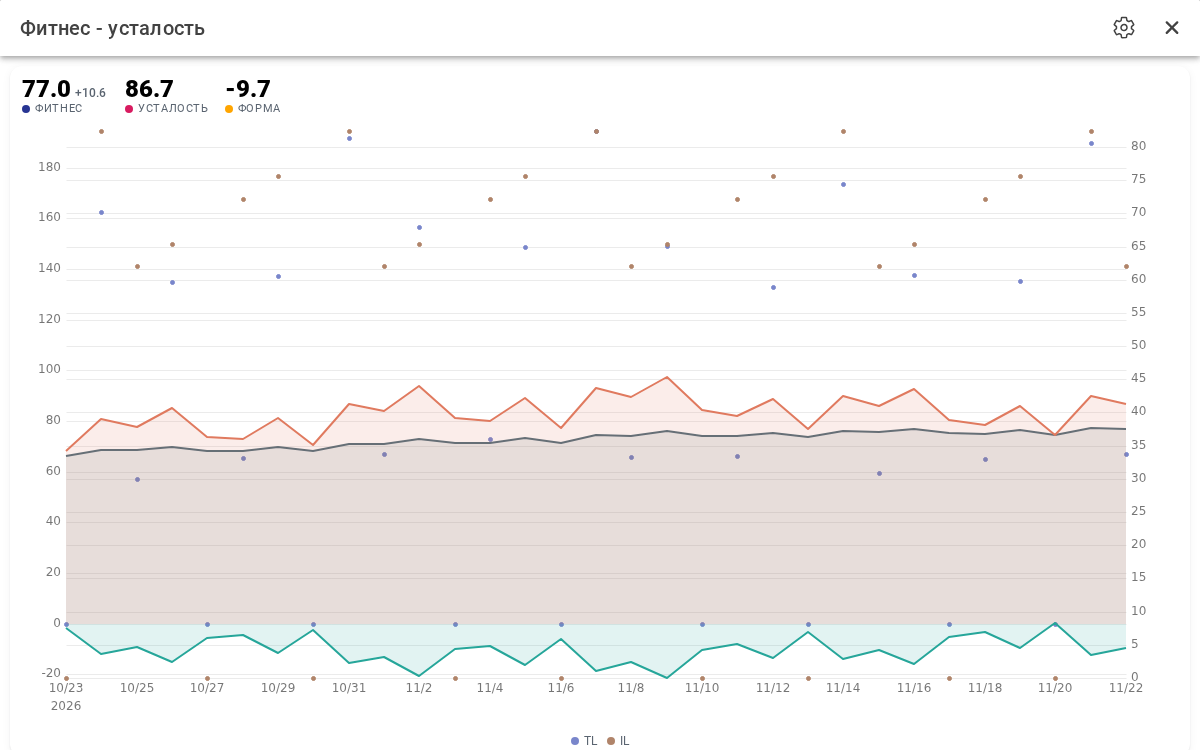
The Fitness and fatigue report in Analytics.
Competitions
Competitions appear in date order, starting today. Each card shows the date and the time remaining, and your key race is marked. Up to five competitions appear initially. Select Show more to load the next ones.
Select a card for details. If you can edit the calendar, choose Add competition to plan a race. Once today's race has a result, the card shows the available figures, such as time and distance. Plan a competition, record or link a result.
Season plans
Select a plan to see up to four weeks and their mesocycles and compare the planned load with the calendar and completed workouts. Select Open plan to view the full plan. Season planning.
Workouts from an assigned training plan appear in the calendar and in Overview on their scheduled dates. Training plans.
Progress
Choose the current week, month, or year. Distance and Time reflect your actual training volume. The Workouts tile shows workouts completed through today, including unplanned ones, on the left and all planned workouts in the selected period on the right. Plan completion averages the percentages for completed workouts that can be compared with their plans.
Open Details to switch the chart between time and distance, see totals by sport, or open the full reports. Analytics and reports.
Access
Your own season plans and form figures require Premium, including when you are a coach viewing your own data. The Example label identifies sample values. The explanation of the form figures is available on any plan.
When a coach selects an athlete, access follows the coach's permissions for that athlete. If access to athlete calendars has expired, selecting an athlete opens a dialog explaining how to get access. The coach can still open their own Overview. Staminity plans.